
Pegasus FocusCube 3
The Pegasus Astro FocusCube 3 is a motor focuser with an optional external temperature probe. The INDI driver supports absolute and relative moves, sync, reverse, the backlash compensation of the firmware and the maximum motor speed, and it sets up the WiFi of the focuser, so the Pegasus Unity Platform is not needed. For the earlier FocusCube, see the Pegasus FocusCube page.
Features
Section titled “Features”- Absolute and relative moves, Abort
- Sync the position to a known value
- Reverse direction
- Backlash compensation in the firmware
- Maximum motor speed, read from the focuser
- Temperature readout for temperature compensation in the client, when the probe is connected
- WiFi hotspot and WiFi client settings, network scan
- Connection by USB or over WiFi (TCP)
- Firmware version
Installation
Section titled “Installation”The driver is part of INDI core and needs no extra dependencies. To run it on its own:
indiserver -v indi_pegasus_focuscube3Connection
Section titled “Connection”USB: the default baud rate is 115200. On the Connection tab select the port, or click Scan Ports; the driver prefers ports whose name contains FocusCube. The driver sends ## and expects a reply containing FC3.
WiFi: once the FocusCube 3 is in your network (see WiFi), select Network on the Connection tab. The address defaults to focuscube3.local, the name the focuser announces in the network, and the port to 9999.
CAUTION
The Pegasus manual says that the TCP port asks for the hotspot password. Firmware 2.0 does not: it accepts commands from anyone in the network. The driver warns about this when it connects over WiFi. Only put the focuser into a network you trust, and keep its hotspot off.
Driver Controls
Section titled “Driver Controls”Main Control
Section titled “Main Control”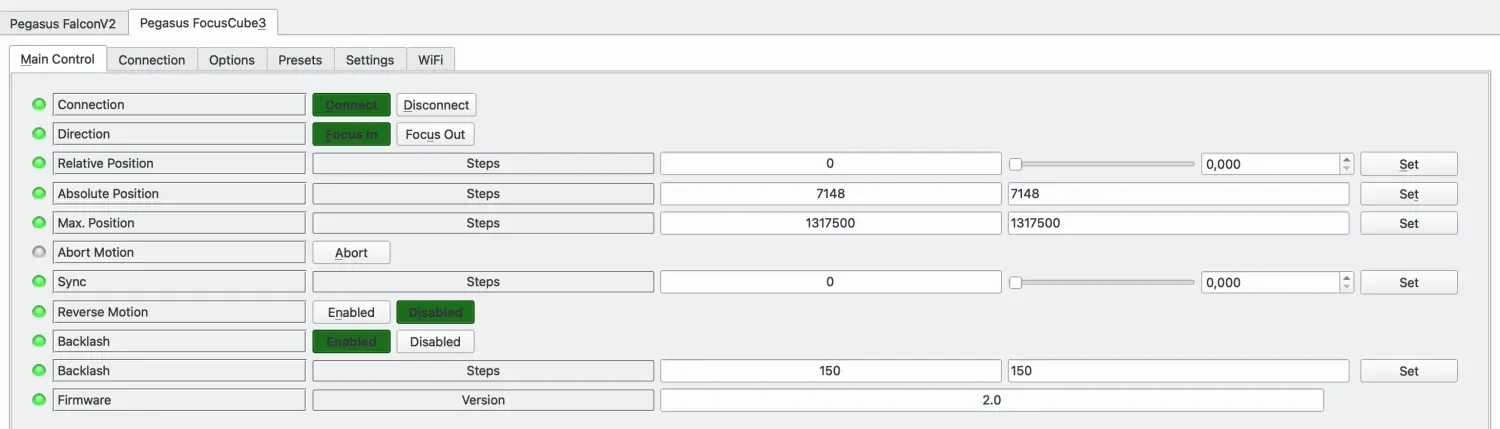
- Direction, Relative Position: move in or out by a number of steps.
- Absolute Position: move to a position in steps. The maximum position is 1317500.
- Max. Position: upper limit for moves.
- Abort Motion: stop the focuser.
- Sync: set the current position to a known value, for example 0 when the drawtube is fully in.
- Reverse Motion: move in the opposite direction.
- Backlash: enable the compensation and set the backlash in steps. The value is stored in the focuser; the firmware applies it on every change of direction. When the firmware reports a backlash above 0, the driver shows the compensation as enabled.
- Firmware: firmware version reported by the focuser.
A move is complete when the focuser has stopped at the target position. If it does not start, the driver reports the move as finished after 5 seconds.
Settings
Section titled “Settings”- MaxSpeed: maximum motor speed. The driver reads it from the focuser on connection. Firmware 2.0 accepts 100 to 400 (default 400) and ignores higher values; the driver then shows the speed the focuser kept and warns.
- Temperature: temperature of the external probe (3.5 mm jack), in °C. It only appears while the probe is connected. Ekos can use it for temperature compensation.
The WiFi tab sets up the WiFi of the focuser. The focuser stores all of these settings itself.
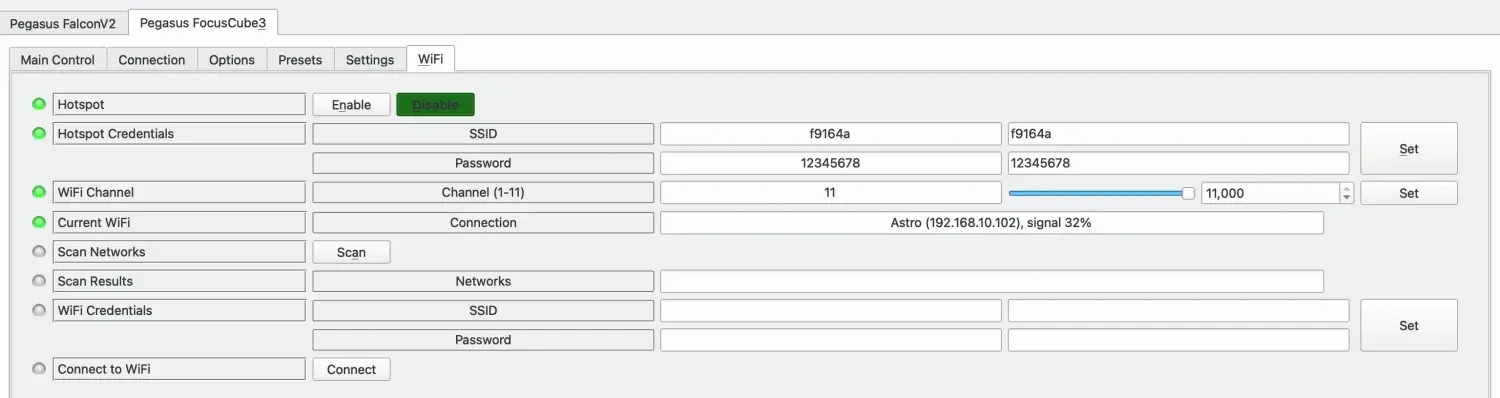
- Hotspot: switch the hotspot of the focuser on or off.
- Hotspot Credentials: SSID and password of the hotspot. The password is also the login for the web dashboard (user
admin). - WiFi Channel: hotspot channel, 1 to 11. Channels 1, 6 and 11 do not overlap.
- Current WiFi: the network the focuser is connected to, with its IP address and signal strength.
- Scan Networks: list the networks in range, each with its best signal. The WiFi radio is only on while the hotspot is enabled or the focuser is connected to a network.
- WiFi Credentials and Connect to WiFi: join a 2.4 GHz network. The focuser connects within a few seconds and keeps trying every 10 seconds; the driver reports the result after 10 seconds. It reconnects to this network after every restart.
Operation
Section titled “Operation”- Set Max. Position to the travel of your focuser, then use Sync to define the zero point.
- The gearbox backlash of the FocusCube 3 is about 30 steps. Pegasus recommends setting the backlash only in the imaging software and leaving it at 0 in the focuser. Use one of them, not both: in Ekos, either the backlash of the focuser or the AF Overscan of the focus module.
- To determine the backlash by hand, move outwards, then inwards in small steps until the star size starts to change, and enter the steps needed.
Troubleshooting
Section titled “Troubleshooting”- If the driver cannot connect by USB, check that no other program (for example Pegasus Unity) uses the port.
- If the focuser moves the wrong way, enable Reverse Motion and sync the position again.
- No connection over WiFi: check Current WiFi over USB, and that the computer resolves
focuscube3.local; otherwise enter the IP address shown there. - The speed jumps back: the focuser ignores speeds above its maximum (400 on firmware 2.0).